A guided tour

You are deciding whether this app is worth your time. Here is exactly what it does.

PulseAware is a mirror for how you come across while you speak. It shows what your voice and body are doing in real time, then lets you compare that to how you remember feeling. This page walks through every screen in the order you would see them, with the real data and the real text from a real session.

It is not a coach. It does not prescribe. It reflects.

Part 1 · Orientation

What PulseAware actually shows you.

Before the tour, a quick framing of what the app is and what it is not. Two minutes of context.

1.1 · The gap

Most feedback about your voice arrives too late.

Meetings end. Interviews end. Calls end. Then, hours or days later, you wonder how you actually came across. PulseAware runs while you are still talking, so the feedback arrives during the moment, not after it.

The app listens on device, measures what your voice is doing, and, if you have an Apple Watch, pulls in heart rate, HRV, breathing, and motion. Everything updates a few times a second.

What makes it different: it is a mirror, not a coach. It does not tell you to calm down or speak slower. It shows you what you are actually doing, and lets you decide what to do about it.
1.2 · Mirror, not coach

The single rule the app tries not to break.

PulseAware will not tell you whether your call went well. It will tell you that your pace climbed 40 percent, your HRV dropped 8 milliseconds, and you used "um" twelve times in four minutes.

Whether that was good or bad is yours to decide.

Part 2 · First launch

What opening the app for the first time feels like.

Three onboarding cards, one permissions prompt, and you are on the Session screen. No account. No sign-up.

2.1 · The welcome screen

You tap the icon. This is what loads.

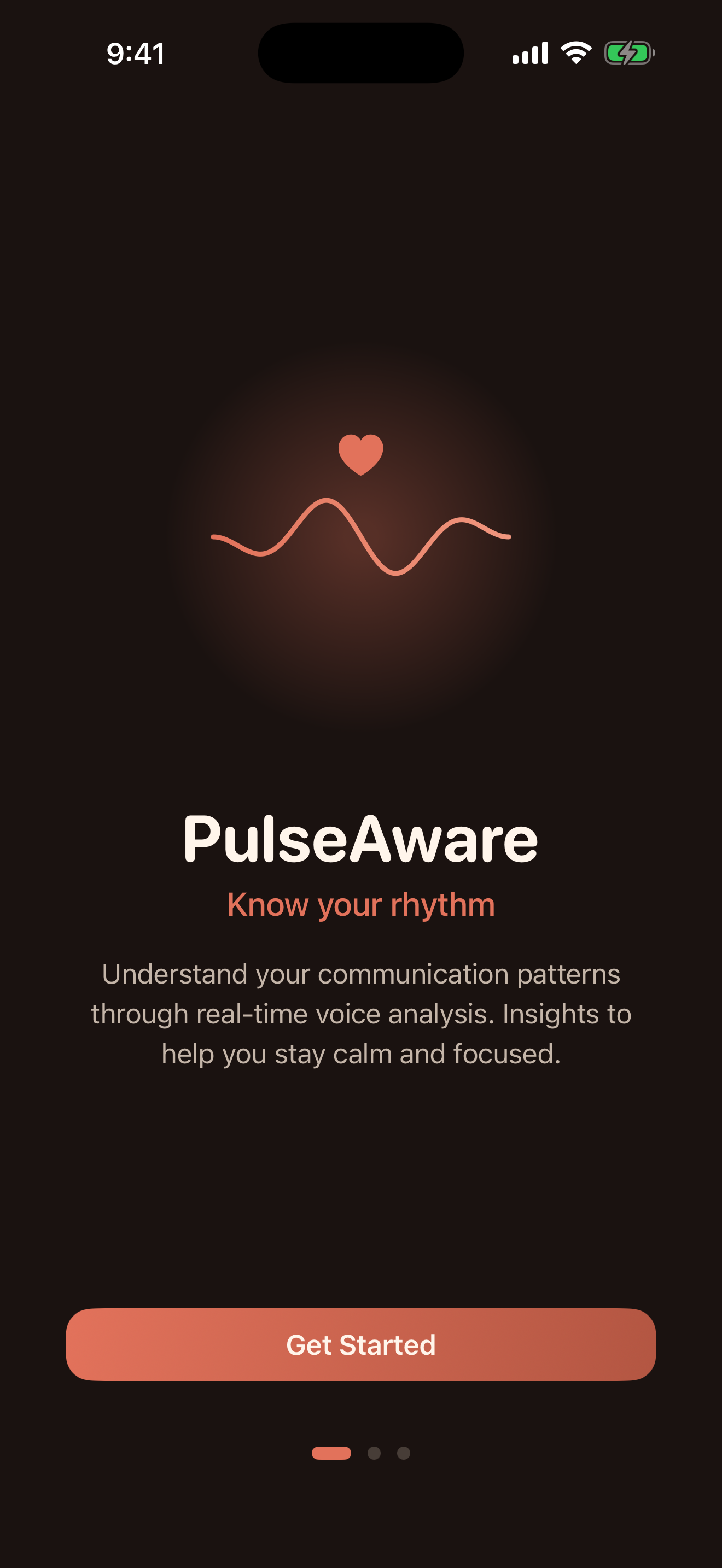
No splash, no loading spinner. The app opens straight to a single card. The wave under the heart icon is the app telling you, quietly, that it is about rhythm and pattern, not verdicts.

The subtitle uses the same language every screen in the app uses: "Know your rhythm." Not "be calmer," not "speak better." Know.

One button, Get Started. Three page dots under it tell you there are two more cards ahead. No skip button on this first page - the app wants you to know what it is before you grant it anything.

PulseAware welcome screen with the PulseAware logo, heart-wave icon, the words Know your rhythm, and a Get Started button.
2.2 · The permissions card

The only permissions PulseAware needs, in plain language.

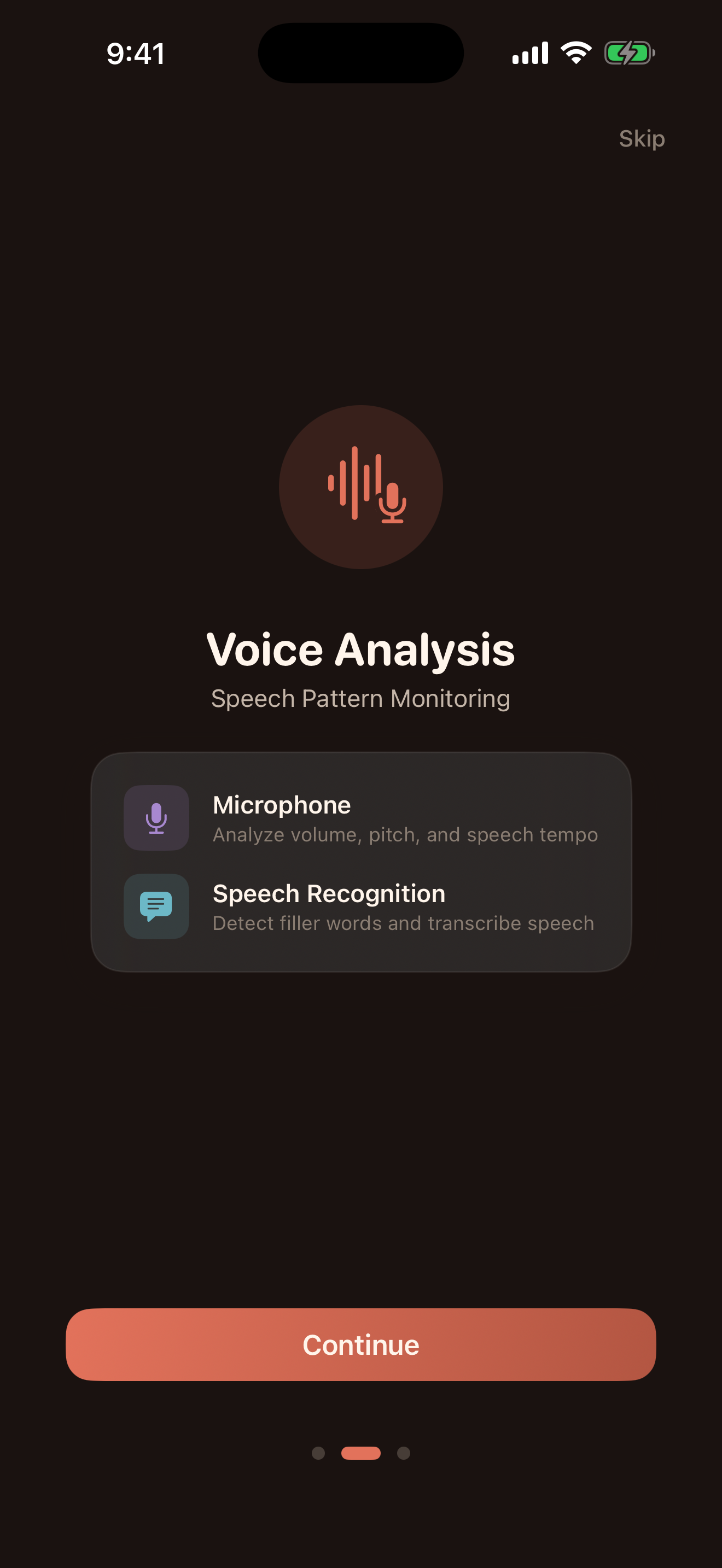
Instead of the usual wall of toggles, the app shows you two small tiles and a paragraph about what each one does:

  • Microphone - "Analyze volume, pitch, and speech tempo."
  • Speech Recognition - "Detect filler words and transcribe speech."

The iOS system prompts show up one at a time on tap, and the result shows inline on the same card. The tile in the screenshot on the right is labelled "Granted" after approval, so you always know what state you are in.

What leaves the phone

Nothing. Both of these services run on-device. The app never ships your audio or your transcript to a server.

PulseAware Voice Analysis onboarding card with a Microphone tile, a Speech Recognition tile, and a Granted status after tapping Continue.
2.3 · Ready to begin

Green checkmark, one button, straight into the app.

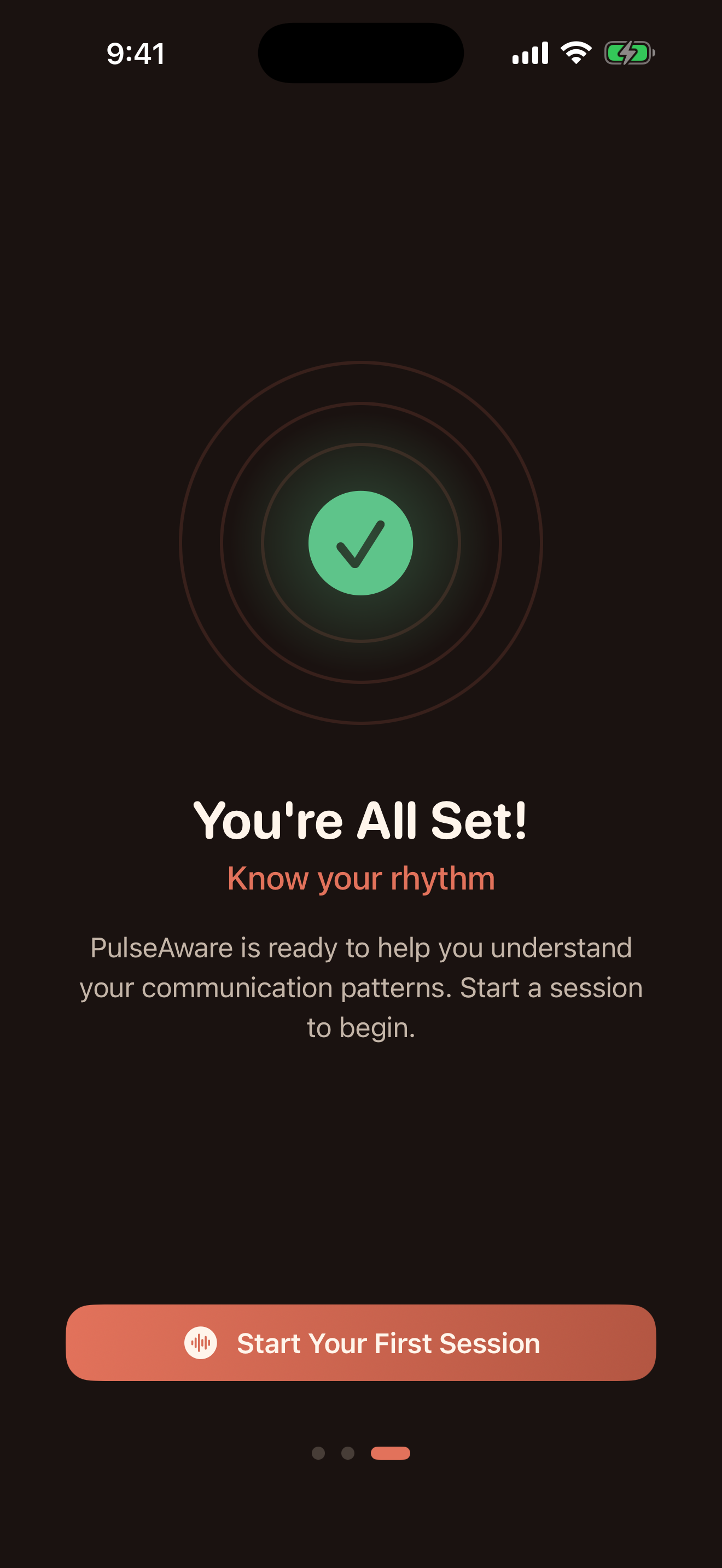
The third card is a soft confirmation. No account to create, no email to verify, no tutorial video to sit through. The green checkmark with the terracotta glow is the app's way of saying "nothing more you need to do." The button below reads Start Your First Session.

This is also the moment the app is the most honest about what it is: a session-based tool. You are not about to scroll a feed. You are about to talk, for a few minutes, and then look at what the app saw.

PulseAware onboarding Youre All Set screen with a green checkmark and a Start Your First Session button.
2.4 · The idle Session tab

Before you press Start, the app shows you what it will measure.

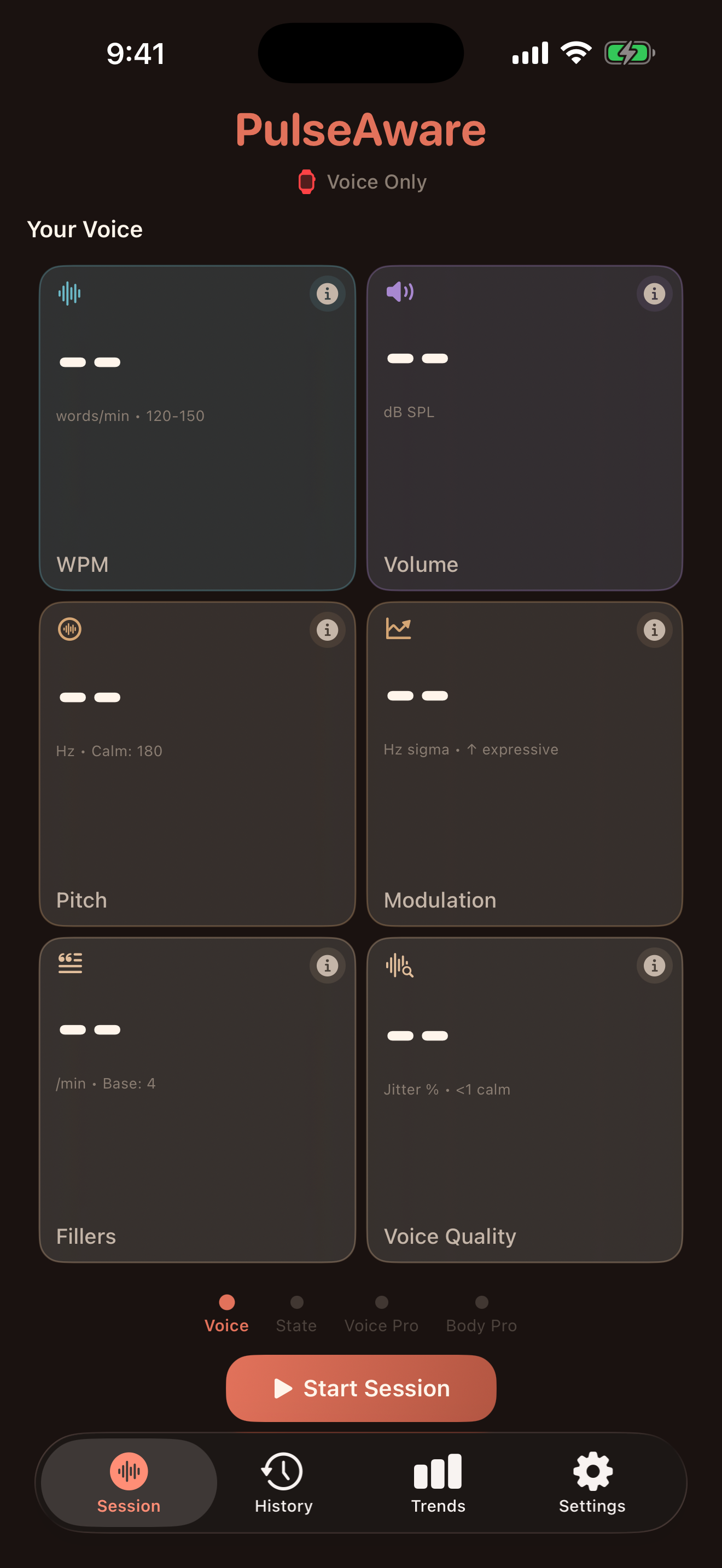
Six tiles: WPM, Volume, Pitch, Modulation, Fillers, Voice Quality. All blank, dashed-out, waiting. Each tile carries its own calm-baseline hint in small grey text: WPM reads "words/min · 120-150", Pitch reads "Hz · Calm: 180".

This matters. Before you have said a single word, the app has shown you what a typical calm number looks like for each tile. When your numbers climb above those ranges later, you already have a reference point.

Under the tiles, four page dots: Voice, State, Voice Pro, Body Pro. The single orange pill at the bottom reads Start Session. That's the whole surface.

PulseAware Session tab in idle state with six empty voice metric tiles and a Start Session button.
Part 3 · A live session

What you actually look at while you talk.

Four swipeable pages during a session. Each one shows a different lens on the same moment.

3.1 · Your Voice

The moment you press Start, the numbers come alive.

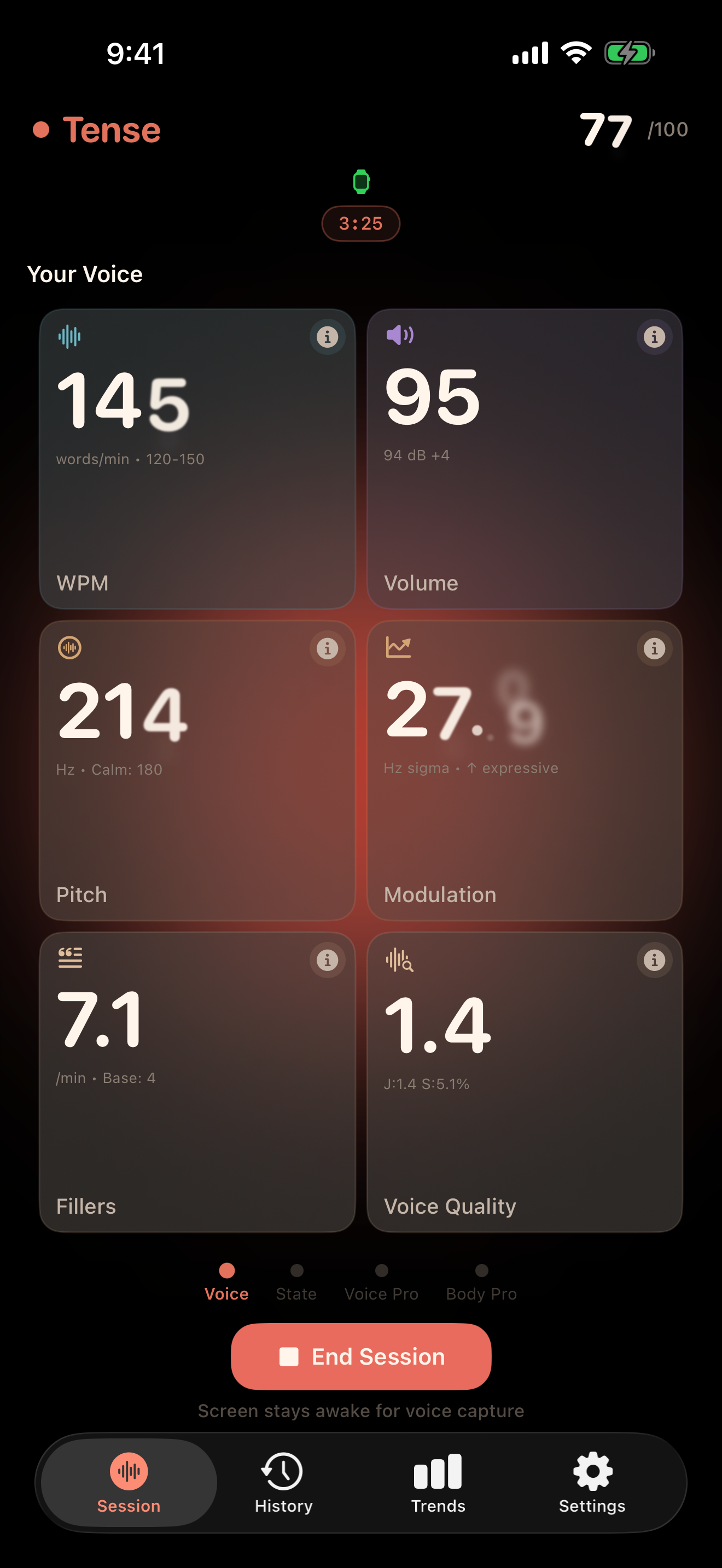
A timer ticks across the top, a small state pill with a coloured dot reads Tense · 77/100 on the right, and the six tiles light up with real numbers as you speak. The screenshot on the right is roughly 3 minutes 25 seconds into a session.

TileShownWhat it means
WPM145Words per minute, calm baseline 120-150.
Volume9594 dB SPL, +4 above the tile's calm band.
Pitch214Hz. Calm baseline 180, so you are elevated.
Modulation27Hz sigma. Higher = more expressive range.
Fillers7.1Per minute, calm base 4. You are clustering.
Voice Quality1.4Composite tension indicator, <1 is calm.

The End Session pill sits at the bottom. Above it, in small text: "Screen stays awake for voice capture." The app will not dim on you mid-call.

PulseAware live session Your Voice page showing WPM 145, Volume 95, Pitch 214, Modulation 27, Fillers 7.1, Voice Quality 1.4, with a Tense 77 state pill at top.
3.2 · Your State

Swipe once. Now you see the body.

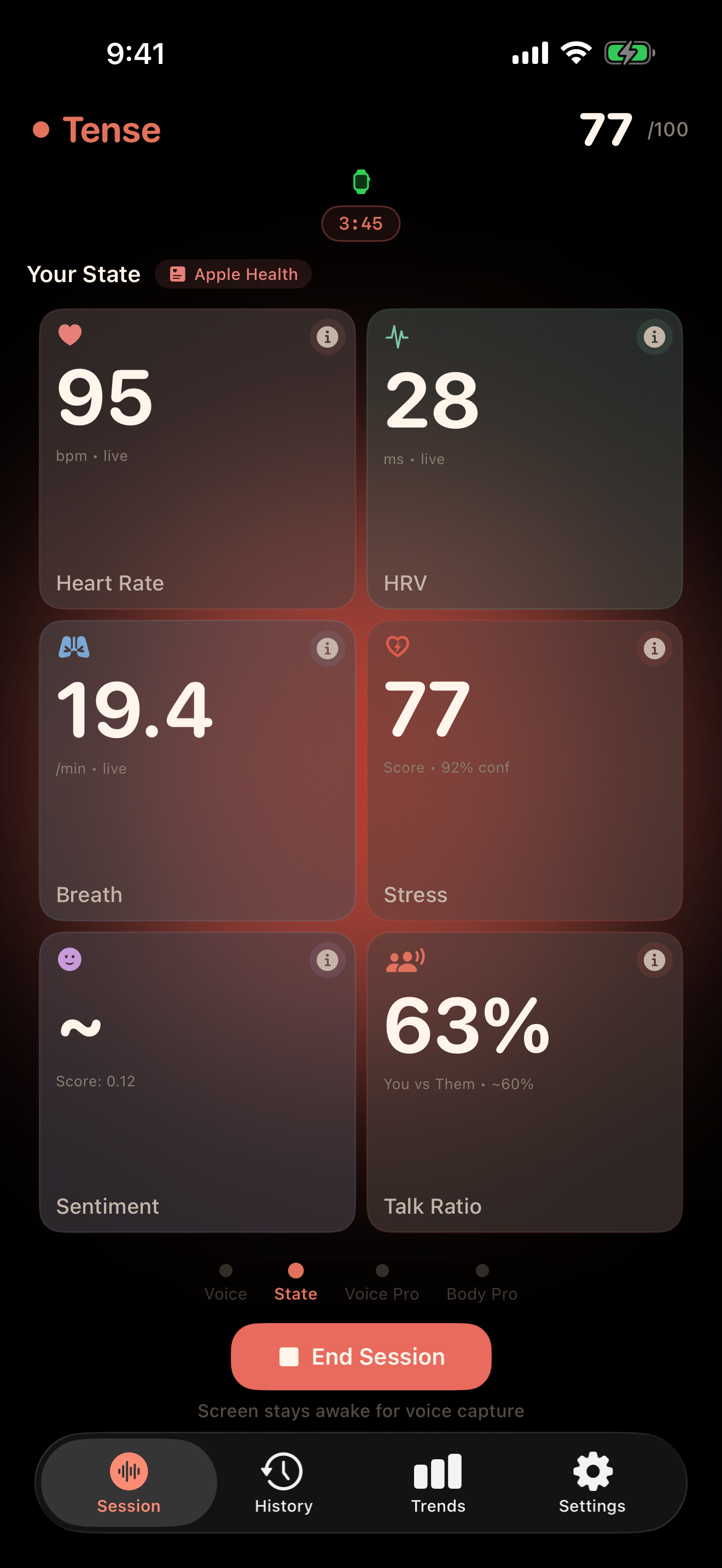
The page flips to six new tiles. The Apple Health pill in the top right confirms the biometrics are coming from your Watch.

TileShownWhat it means
Heart Rate95bpm, live from the Watch.
HRV28ms, suppressed vs a calm 48.
Breath19.4Breaths/min. Fast + shallow = activated.
Stress77Score 0-100, the app's composite read of arousal.
Sentiment0.12-1 to +1 from your spoken language.
Talk Ratio63%Share of the session you were speaking.

This is the page coaches and clinicians tend to look at first. It is the "how you are doing" overview that pulls together voice and body into a single read.

PulseAware Your State page during a live session showing Heart Rate 95, HRV 28, Breath 19.4, Stress 77, Sentiment score 0.12, Talk Ratio 63 percent, with an Apple Health pill in the top right.
3.3 · Voice Pro

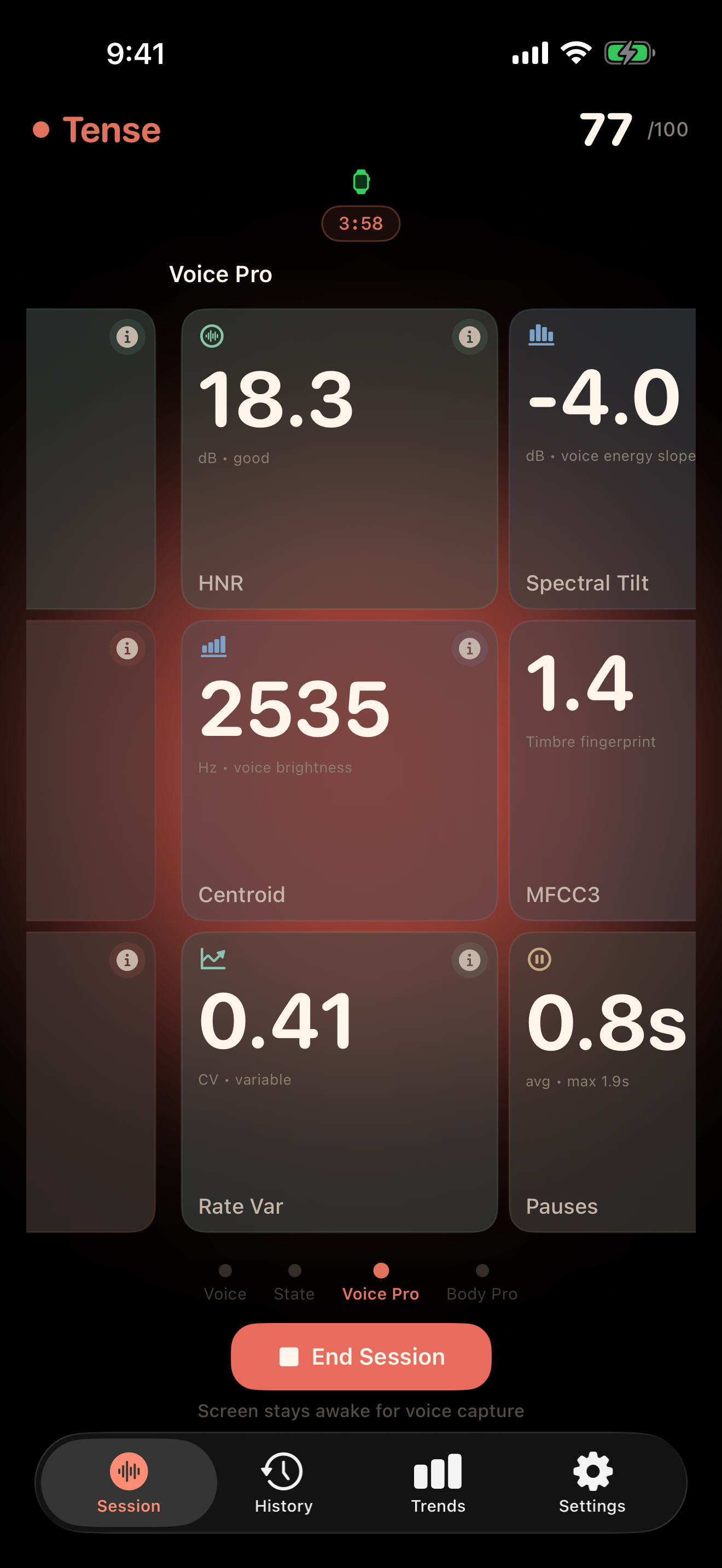
Swipe again. The voice science gets specific.Pro

The Voice Pro page trades the everyday tiles for six acoustic measurements that actually matter when you want to understand why your voice reads tense.

TileShownWhat it means
HNR18.3 dBHarmonic-to-noise. Higher is clearer.
Spectral Tilt-4.0 dBVoice energy slope. Tense voices get flatter.
Centroid2535 HzBrightness. Tense voices get brighter.
MFCC31.4Timbre fingerprint, third coefficient.
Rate Var0.41Speech-rate variability (CV). Variable = uneven.
Pauses0.8sAverage pause duration. Max shown beneath.

You do not need to know what a centroid is to use PulseAware. You only need to know that the numbers move together, and that when your voice sounds off to you, one of these tiles is usually the reason.

PulseAware Voice Pro live page showing HNR 18.3 dB, Spectral Tilt -4.0 dB, Centroid 2535 Hz, MFCC3 1.4, Rate Var 0.41, Pauses 0.8 seconds.
3.4 · Body Pro

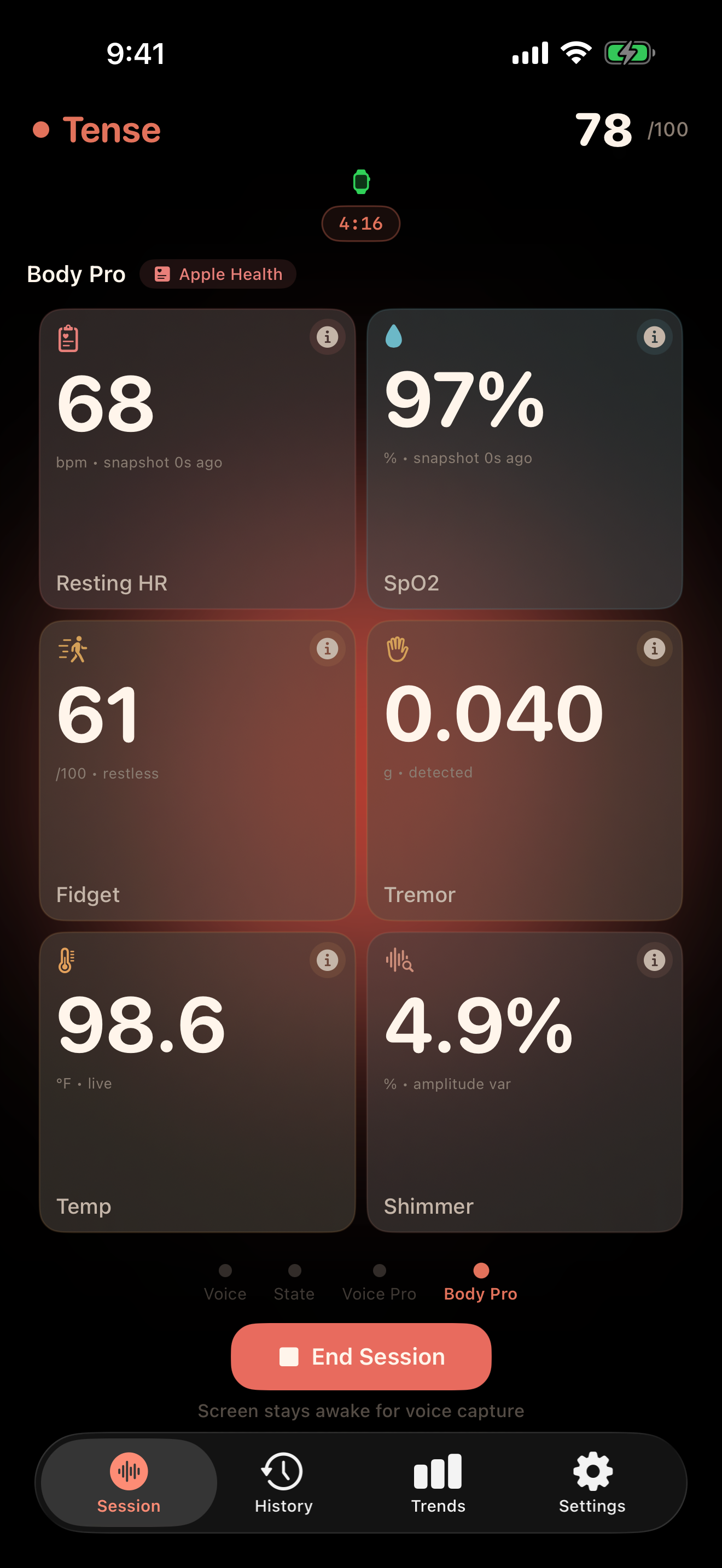
The last swipe. Wearable signals the Watch collects.Pro

Body Pro shows the biometric layer your Watch is capturing during the session. The Apple Health tag tells you which numbers are live vs historical.

TileShownWhat it means
Resting HR68 bpmYour calm baseline, from HealthKit.
SpO297%Blood oxygen saturation, last sample.
Fidget61Motion intensity, 0-100.
Tremor0.040Micro-movement amplitude.
Temp98.6°FWrist temp, if the Watch supports it.
Shimmer4.9%Voice amplitude variability (crossed in from voice).

This page is also where the app is the most honest about limits. If your Watch doesn't have a SpO2 sensor, the tile simply says so. No invented numbers.

PulseAware Body Pro live page showing Resting HR 68, SpO2 97 percent, Fidget 61, Tremor 0.040, Temp 98.6, Shimmer 4.9 percent.
3.5 · The state ladder

What the colour at the top of the screen actually means.

That Tense · 77/100 pill you see in the screenshots sits on a five-rung ladder. The app moves you between them as your composite stress score climbs or falls. No moralising on the rung - it is a read-out, not a report card.

Calm
0 - 30
Focused
30 - 45
Elevated
45 - 60
Tense
60 - 80
High Alert
80 - 100
3.6 · About the Apple Watch

The Watch is a Pro feature, and here is why it matters.

Without a Watch, PulseAware sees voice only. That is already a lot. But if you pair a Watch, the app picks up heart rate in real time, reads HRV and breathing from HealthKit, and layers motion on top.

The Watch can also deliver haptic nudges - a discreet tap on your wrist when your stress, heart rate, or filler rate spikes. Off by default. One toggle in Settings.

The small voice-only indicator at the top of the Session tab switches from "Voice Only" to "Apple Watch Connected" the moment the companion app launches on your wrist.

Part 4 · The recap

What the app tells you when you stop.

Scrolling through a finished session. Narrative, timelines, coaching notes, and the app's own read of your emotional state.

4.1 · The top of the recap

The app tells you what it thinks just happened.

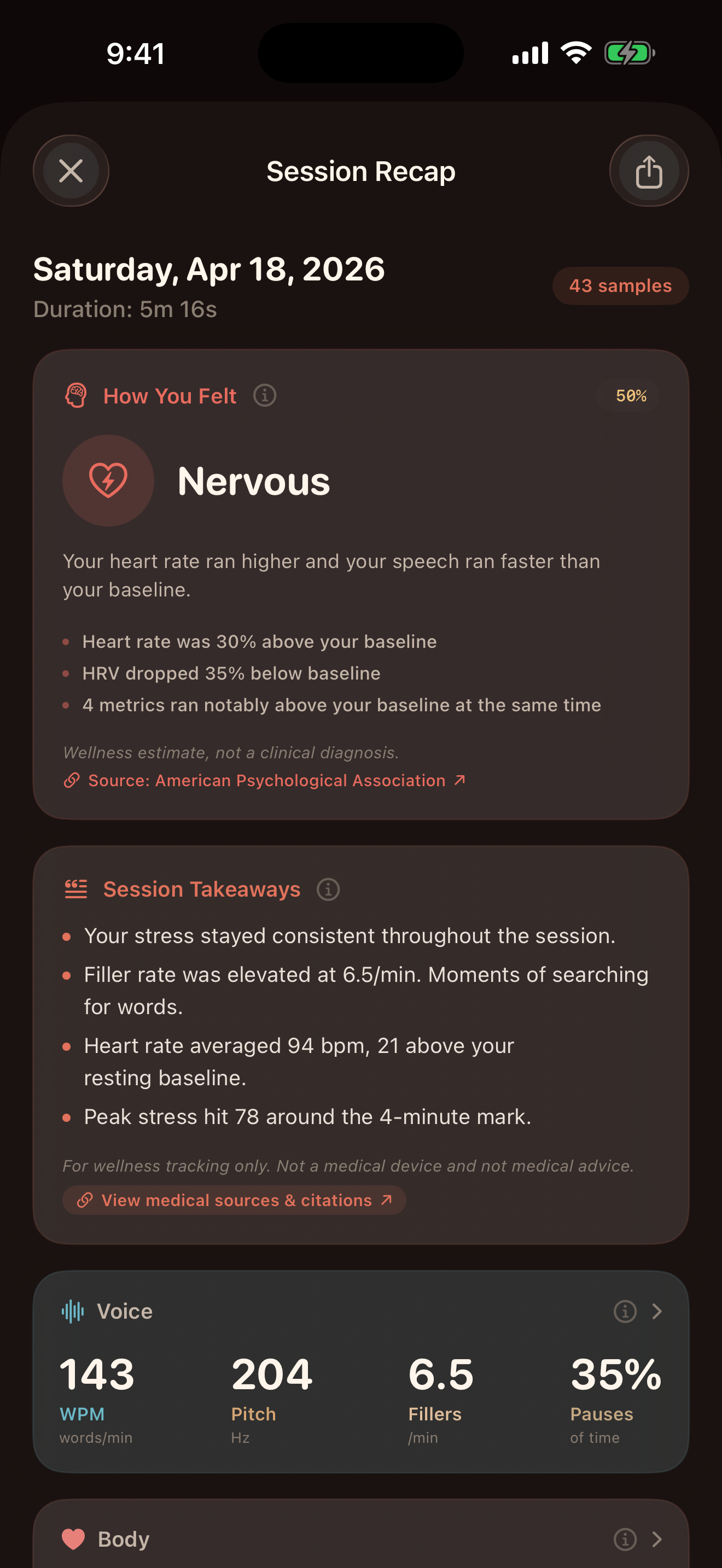
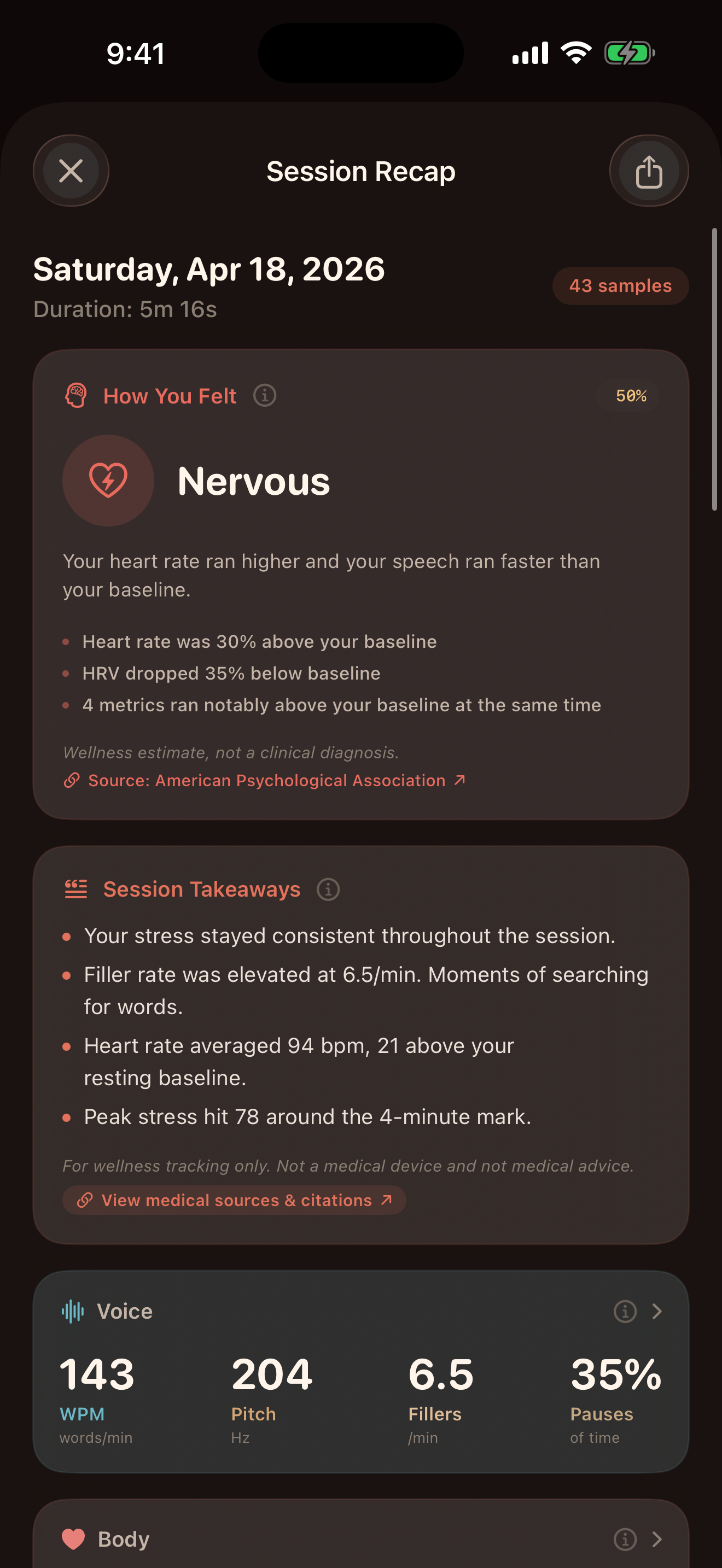
Session Recap opens with two blocks. First, the date and duration, with a small pill showing how many samples were collected - in this session, 43. Then, the How You Felt card.

The emotional-state engine ran across every voice and body signal it had and produced an inference: Nervous, 56% confident. Beneath the label, three bullets explain why:

  • Heart rate was 30% above your baseline
  • HRV dropped 35% below baseline
  • 4 metrics ran notably above baseline at the same time

The footer cites the American Psychological Association, and a small note reads "Wellness estimate, not a clinical diagnosis." The honesty is the point.

Below that, Session Takeaways summarise in plain English: stress was consistent, filler rate was elevated at 6.5/min, heart rate averaged 94, peak stress hit 78 around the 4-minute mark. The "View medical sources & citations" link drops you into the references.

And at the very bottom, a strip of four summary numbers for the Voice section: WPM 143, Pitch 204, Fillers 6.5, Pauses 35%.

Top of PulseAware Session Recap showing date Saturday Apr 18 2026, duration 5m 16s, How You Felt Nervous 56 percent with supporting bullets, and Session Takeaways.
4.2 · Timelines and Key Moments

What happened, when.

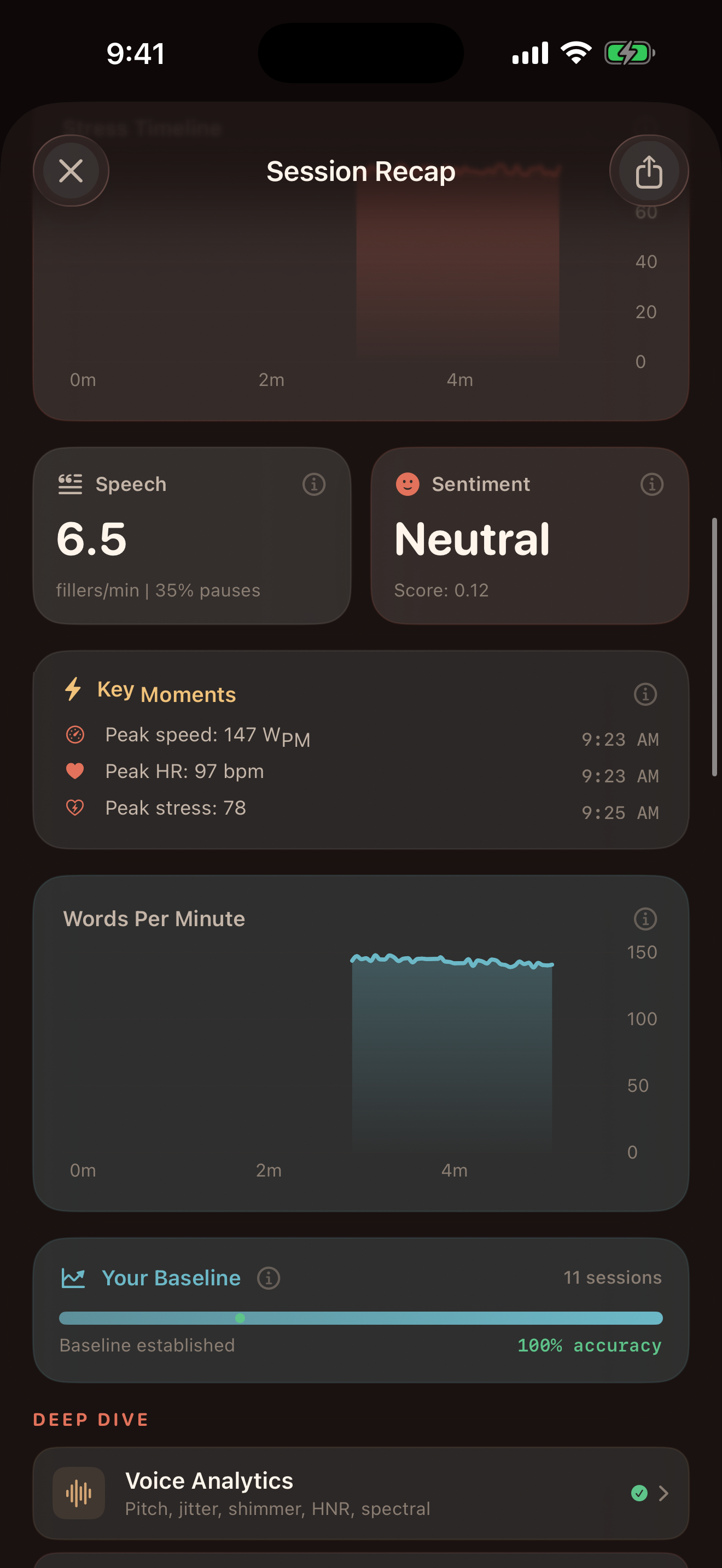
Scrolling down, the recap shifts from summary to timeline. The Speech and Sentiment cards carry single-number reads: 6.5 fillers/min · 35% pauses, and a neutral score of 0.12.

The Key Moments panel flags three timestamped events from this session:

  • Peak speed: 147 wpm at 9:23 AM
  • Peak HR: 97 bpm at 9:23 AM
  • Peak stress: 78 at 9:25 AM

Below that, the first real chart: Words Per Minute across the full duration. You can see the climb around the 2-minute mark, the plateau near 150, and the settle.

The baseline bar under it reads "11 sessions · 100% accuracy" - the number of past sessions the app has averaged to build your personal calm baseline.

PulseAware Session Recap showing Speech and Sentiment summary, Key Moments with peak speed, peak HR, and peak stress timestamps, a Words Per Minute timeline, and Your Baseline 11 sessions 100 percent accuracy.
4.3 · Scorecard and coaching

The app does not tell you what to do. It tells you what you did.

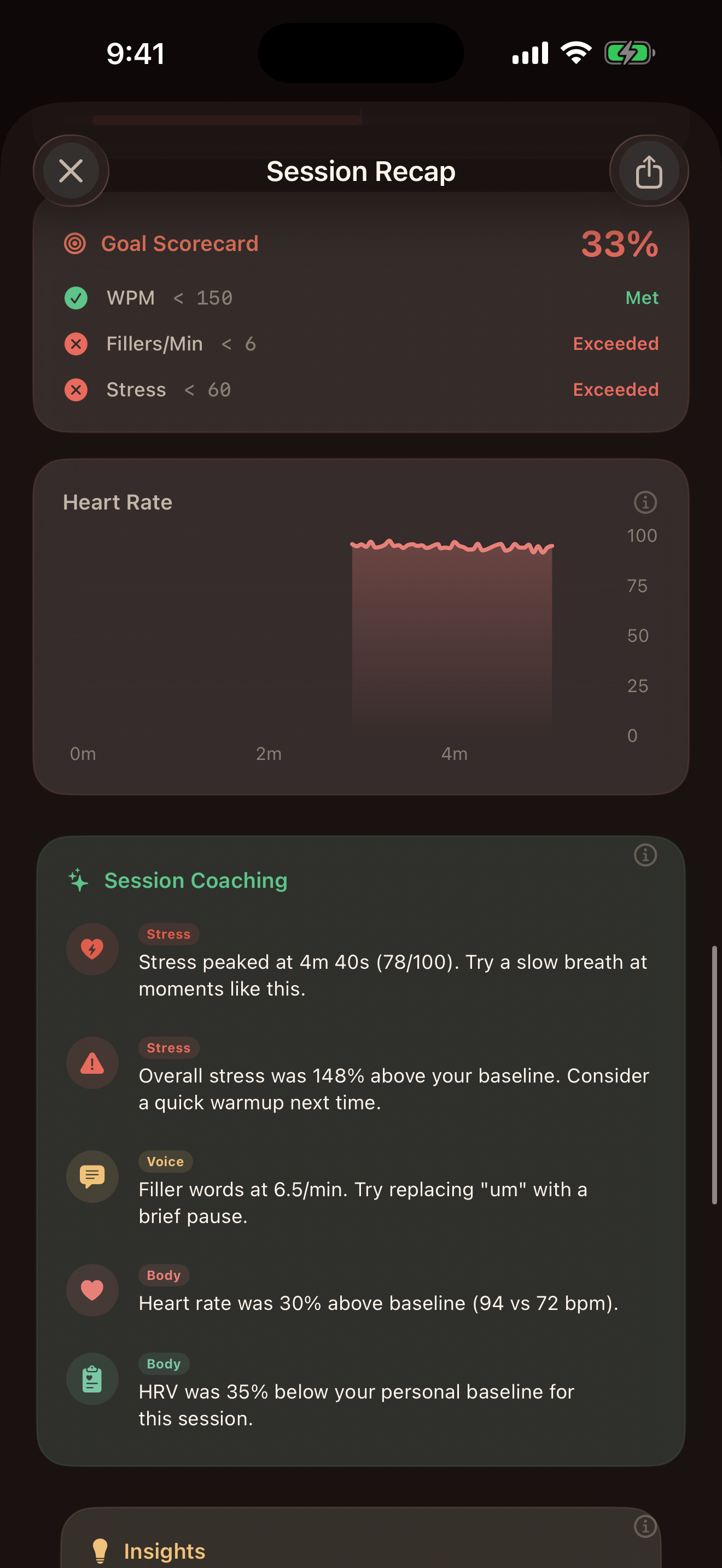
The Goal Scorecard is the closest the app comes to a verdict. Three row, three numbers, three labels: Met, Exceeded, Exceeded. Not "Failed." Not "Poor." The app simply counts thresholds.

  • WPM < 150 - Met
  • Fillers/Min < 6 - Exceeded
  • Stress < 60 - Exceeded

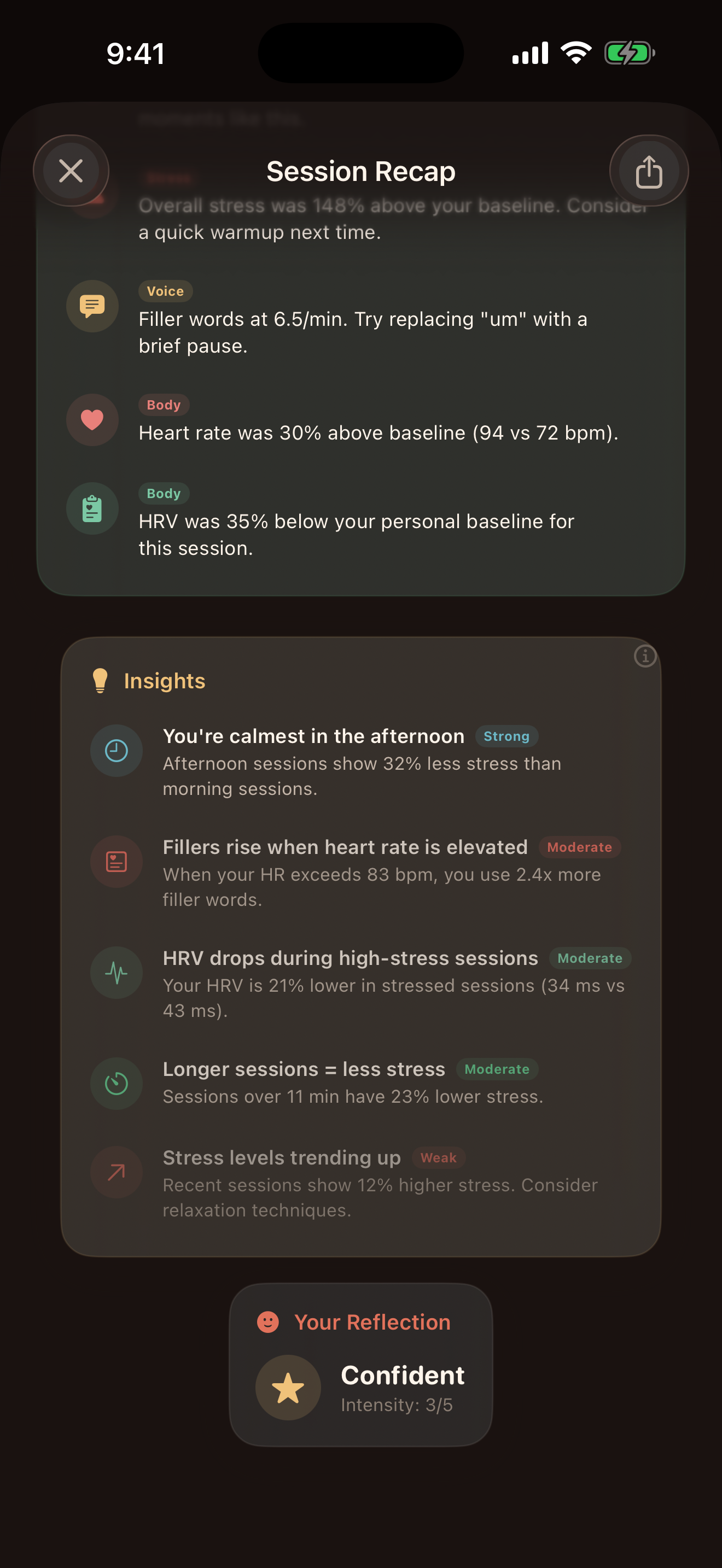
The Heart Rate timeline rides high in the ~90 band. Under it, Session Coaching is where the app sounds most like a coach, but notice the language. Each bullet is a suggestion anchored to a number, not a command:

  • "Stress peaked at 4m 40s (78/100). Try a slow breath at moments like this."
  • "Overall stress was 148% above your baseline. Consider a quick warmup next time."
  • "Filler words at 6.5/min. Try replacing 'um' with a brief pause."
  • "Heart rate was 30% above baseline (94 vs 72 bpm)."
  • "HRV was 35% below your personal baseline for this session."
PulseAware Session Recap Goal Scorecard at 33 percent with WPM Met, Fillers Exceeded, Stress Exceeded, Heart Rate timeline, and Session Coaching bullets.
4.4 · Insights

Patterns across many sessions, not just this one.

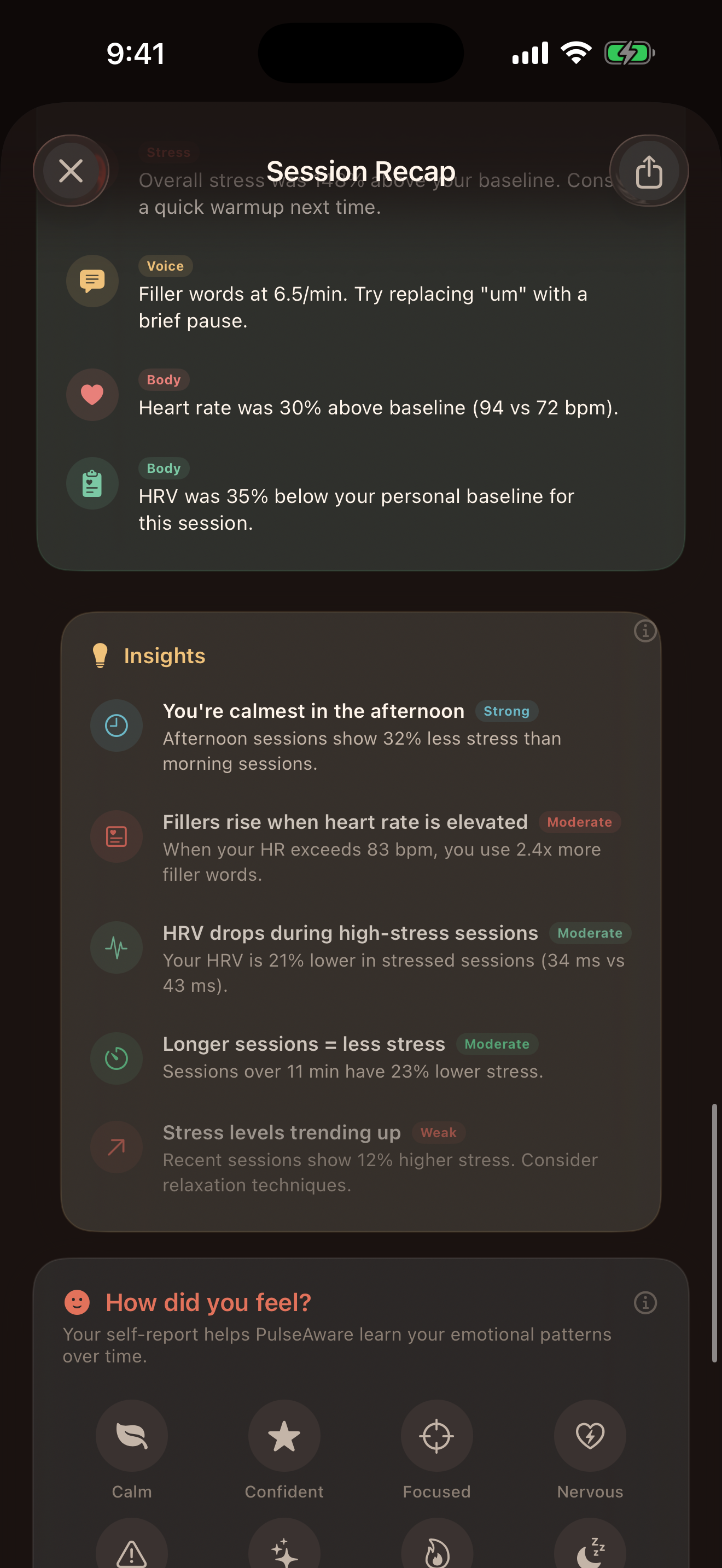
After the single-session coaching block, the Insights panel widens the lens. Each insight is tagged Strong, Moderate, or Weak, so you can tell at a glance how much weight to give it.

  • You're calmest in the afternoon (Strong) - Afternoon sessions show 32% less stress than morning sessions.
  • Fillers rise when heart rate is elevated (Moderate) - When your HR exceeds 83 bpm, you use 2.4x more filler words.
  • HRV drops during high-stress sessions (Moderate) - Your HRV is 21% lower in stressed sessions (34 ms vs 43 ms).
  • Longer sessions = less stress (Moderate) - Sessions over 11 min have 23% lower stress.
  • Stress levels trending up (Weak) - Recent sessions show 12% higher stress. Consider relaxation techniques.

None of these are prescribed. The app surfaces them as observations and leaves the interpretation to you.

PulseAware Insights panel with five tagged observations including calmest in afternoon, fillers rise with heart rate, HRV drops during high stress, longer sessions equals less stress, and stress levels trending up.
Part 5 · The mirror moment

When what you felt and what your body said don't match.

The single most important screen in the app. What you tagged, what your body signals said, and what to do with both.

5.1 · How did you feel?

The prompt that makes the whole thing work.

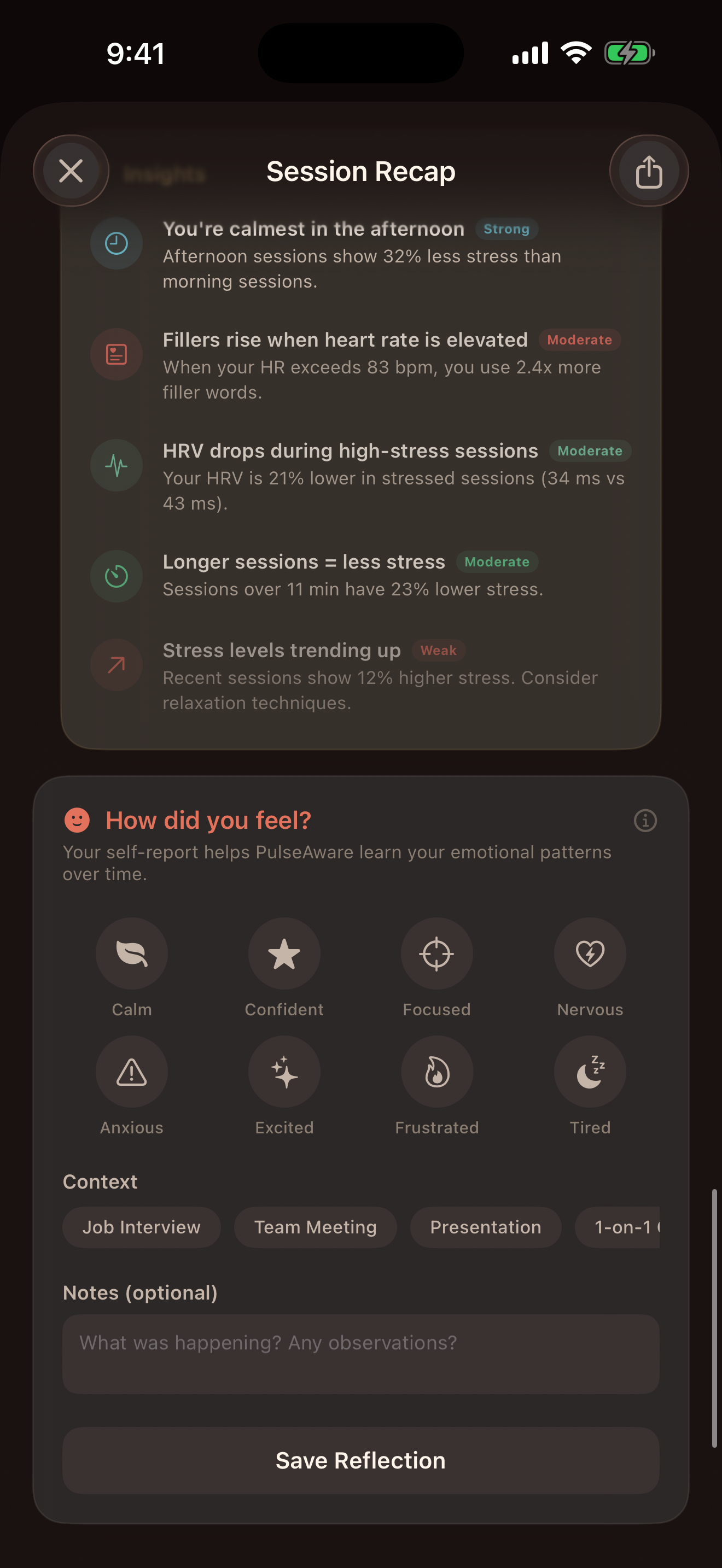
At the bottom of every recap, the app asks a simple question: How did you feel?

Eight tiles, laid out in a 4x2 grid: Calm, Confident, Focused, Nervous, Anxious, Excited, Frustrated, Tired. Below them a Context chip row: Job Interview, Team Meeting, Presentation, 1-on-1, and more. Below that, an optional Notes field.

Your answer here becomes part of the training signal that sharpens your personal baselines over time. It is also what lets the app show you the next panel, the one you came here for.

PulseAware How did you feel prompt with eight mood tiles including Calm, Confident, Focused, Nervous, Anxious, Excited, Frustrated, Tired, a Context chip row, and a Notes field.
5.2 · You tagged Confident

One tap. An intensity scale appears.

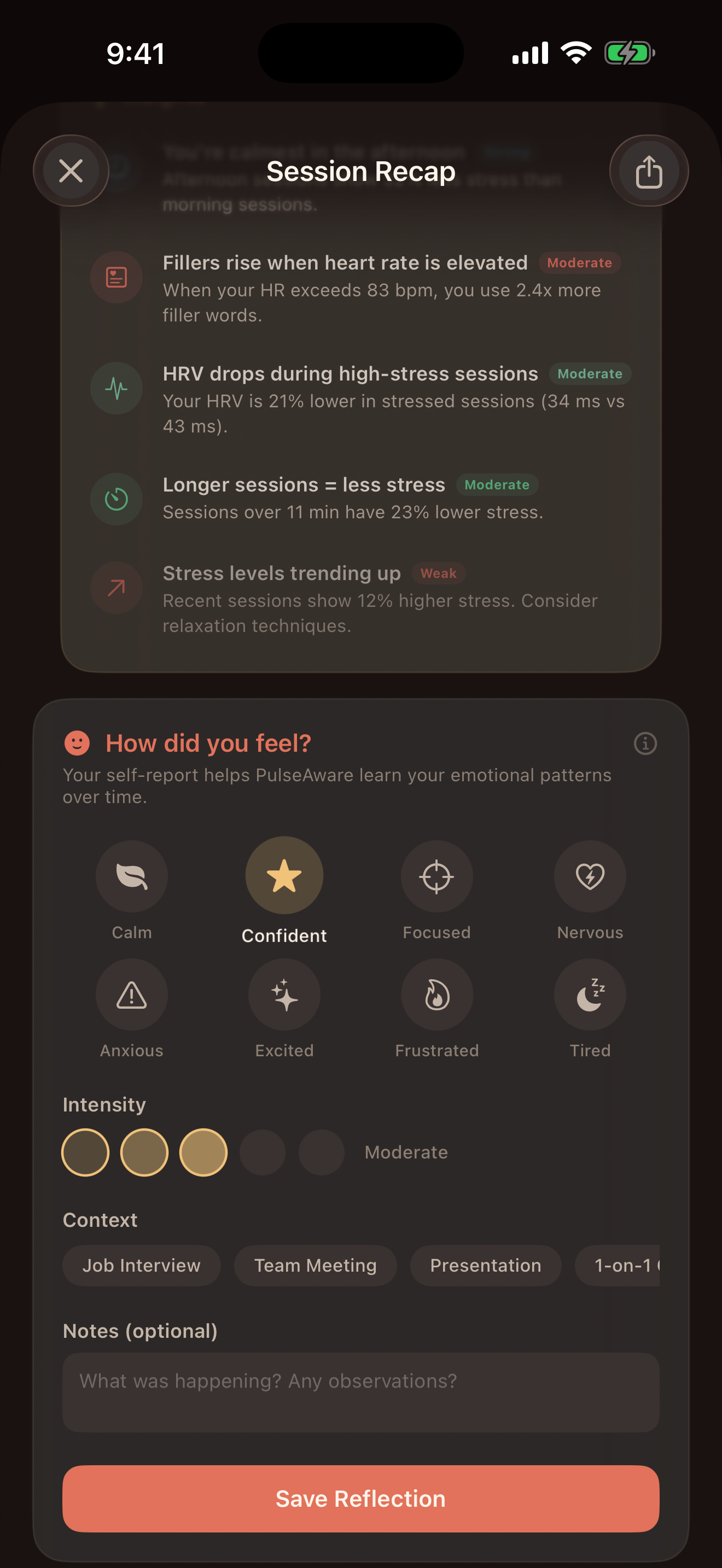
The Confident tile takes on a gold glow the moment you tap it. An intensity row fades in beneath the tiles, with five dots and a label. In the screenshot, three dots are lit and the label reads Moderate.

A Context chip Job Interview is already highlighted, inferred from the session. The Save Reflection button at the bottom turns orange and waits.

Notice the weight of what just happened. The algorithmic panel at the top of the recap said Nervous. You just told the app Confident · Moderate.

PulseAware mood picker with Confident tile highlighted gold, an Intensity row showing 3 of 5 dots lit with label Moderate, and a Save Reflection button at the bottom..
5.3 · Reflection saved

A small card appears at the bottom.

When you tap Save Reflection, the mood picker collapses into a compact card labelled Your Reflection, showing the mood you chose and the intensity. In this session: Confident · Intensity 3/5.

The rest of the recap is still right there - the Insights panel above it, the Session Coaching above that. Nothing is replaced. Both reads coexist.

PulseAware Session Recap after reflection saved, showing a compact Your Reflection card at the bottom with mood Confident and Intensity 3 of 5, above the Insights panel and Session Coaching summary.
5.4 · The mirror

Both panels, in the same session. This is what the whole app was built for.

Scroll back to the top of the recap. The How You Felt panel still says Nervous · 56%. Scroll all the way down again. Your Reflection still says Confident · 3/5.

These two reads live in the same recap. The app makes no effort to reconcile them, because that is not its job. The whole premise is that the gap between how you felt and how your body and voice signalled is meaningful.

PulseAware Session Recap with How You Felt reading Nervous 56 percent at the top, while earlier the user tagged Confident Intensity 3 out of 5.

The mirror, made visible

You tagged
Confident
Intensity 3/5 · Job Interview
Your signals read
Nervous
56% confidence · HR +30% · HRV -35%

Neither reading is wrong. They are two sides of the same moment, and the app's job is to show both without picking a winner.

Part 6 · Patterns over time

What a month of sessions looks like.

History and trends. Baselines, trajectory arrows, and the patterns you start to notice after a few weeks.

6.1 · History

Your last N sessions, averaged and individually.

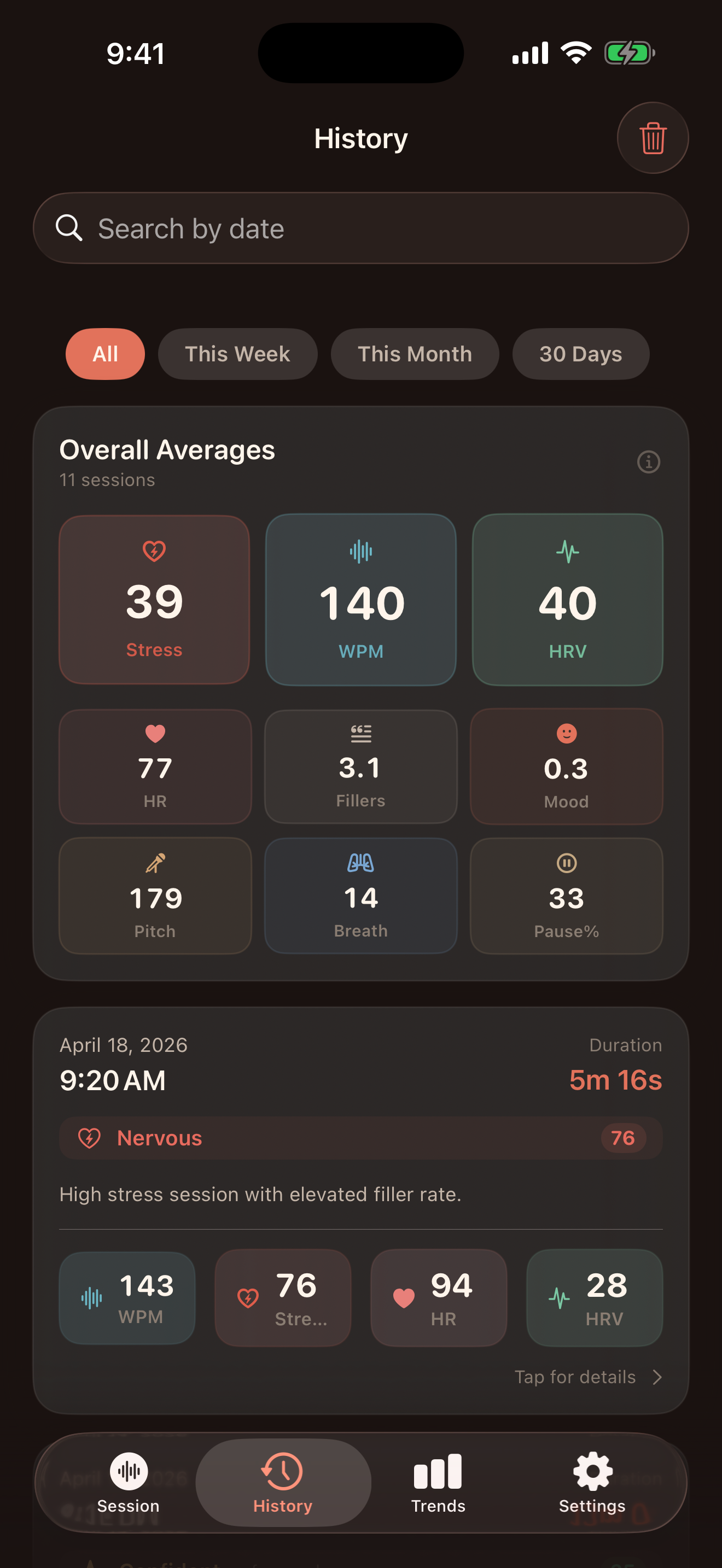
The History tab opens with a search bar, four time filters (All, This Week, This Month, 30 Days), and an Overall Averages card that reduces however many sessions you have to nine numbers.

In this example - 11 sessions:

  • Stress 39 · WPM 140 · HRV 40
  • HR 77 · Fillers 3.1 · Mood 0.3
  • Pitch 179 · Breath 14 · Pause% 33

Below the averages, your most recent session is a tappable card with the date, duration, the app's emotional-state read (Nervous, 76), a one-line summary ("High stress session with elevated filler rate"), and four chip numbers. Tap the card to open that session's full recap.

PulseAware History tab showing search bar, filter pills, Overall Averages for 11 sessions, and a recent session card for April 18 Nervous 76.
6.2 · Trends · top

Your baseline, your activity calendar, and your trajectory.

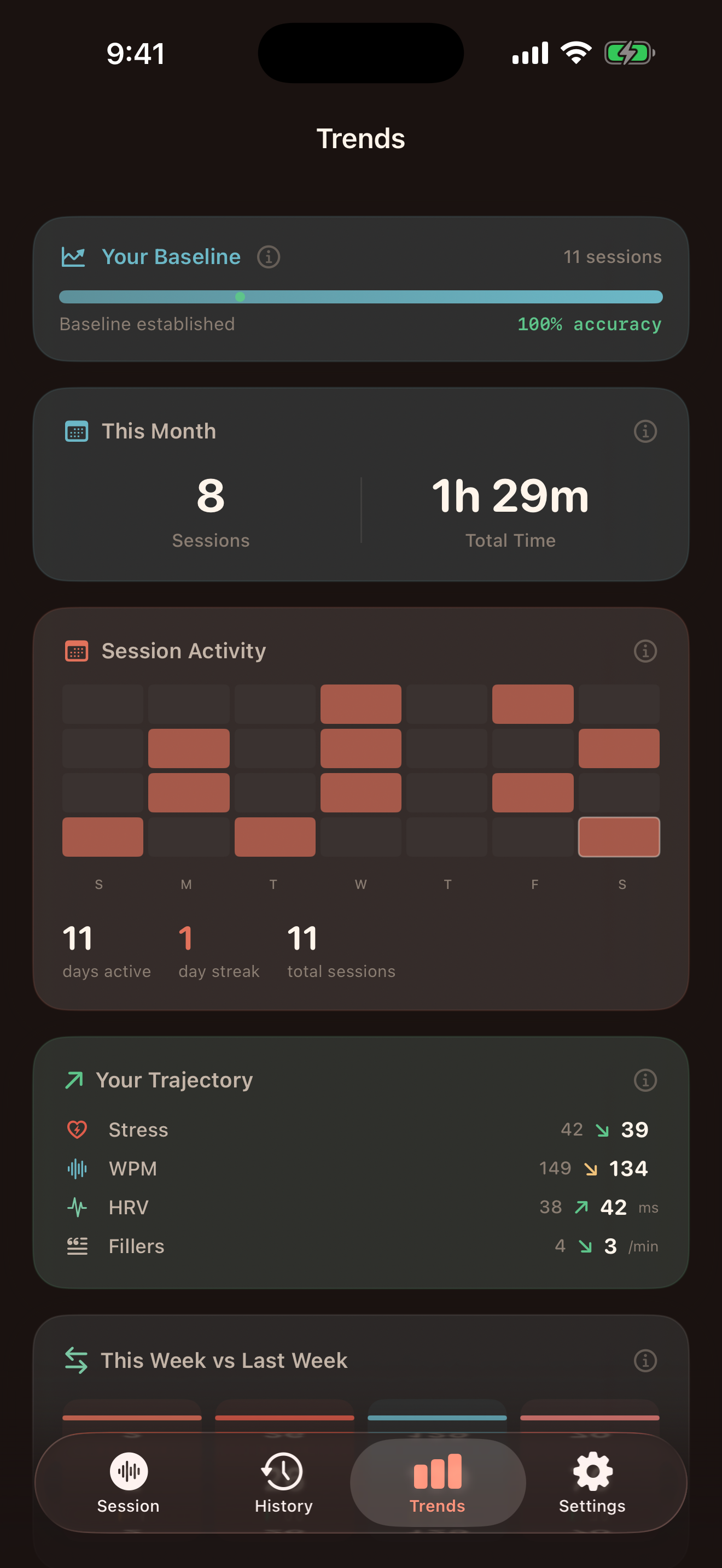
The Trends tab opens with four cards, in order:

  • Your Baseline - a progress bar labelled "11 sessions · 100% accuracy". The app needs about 10 sessions to build a stable personal baseline.
  • This Month - session count and total talk time.
  • Session Activity - a small per-day bar chart with day-active, day-streak, and total-session counters.
  • Your Trajectory - four rows, each with an arrow showing direction of change: Stress 42 ↘ 39, WPM 149 ↘ 134, HRV 38 ↗ 42, Fillers 4 ↘ 3.

The trajectory card is the most honest visual in the whole app. No lift charts, no "you are 12% better." Just numbers next to arrows.

PulseAware Trends top showing Your Baseline 11 sessions 100 percent accuracy, This Month 8 sessions 1h 29m, Session Activity calendar, and Your Trajectory arrows for Stress WPM HRV Fillers.
6.3 · Trends · progress

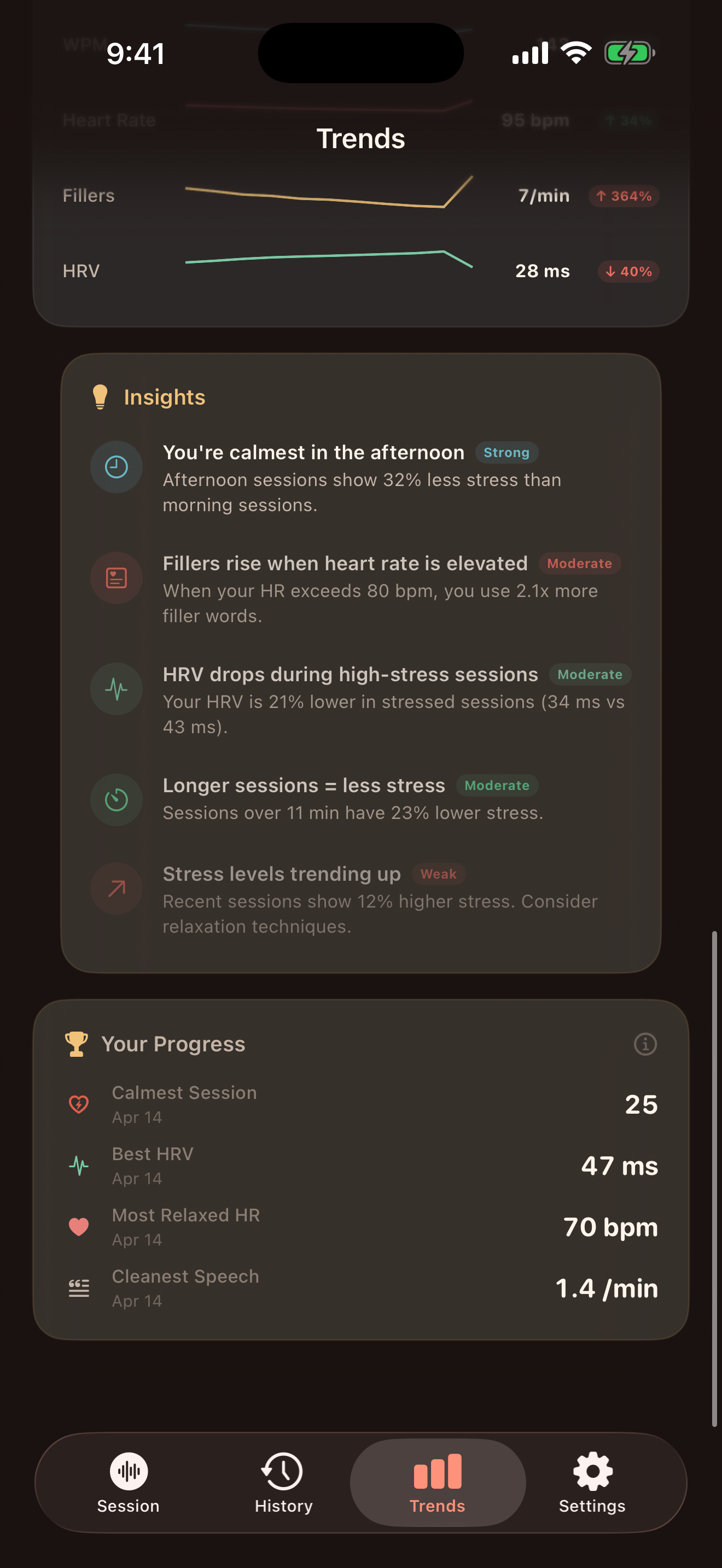
This week vs last week, and the four numbers worth remembering.

Scroll once and you land in This Week vs Last Week comparison lines for Fillers (7/min, up 384%) and HRV (28 ms, down 40%).

Below that, the Insights panel repeats (so you can review patterns without going into a specific session), and then the Your Progress card shows your personal bests:

  • Calmest Session - 25, Apr 14
  • Best HRV - 47 ms, Apr 14
  • Most Relaxed HR - 70 bpm, Apr 14
  • Cleanest Speech - 1.4/min, Apr 14

The date stamps matter: the app remembers the session where you sounded the most settled, and holds it up as a reference point.

PulseAware Trends page showing This Week vs Last Week lines for Fillers and HRV, the Insights panel with five observations, and a Your Progress card listing calmest session, best HRV, most relaxed HR, and cleanest speech.
Part 7 · What is yours to control

Settings, recognition engines, and privacy.

Watch pairing, speech recognition mode, capture cadence, references, and the reset button.

7.1 · Watch and Recognition

Two blocks, three decisions.

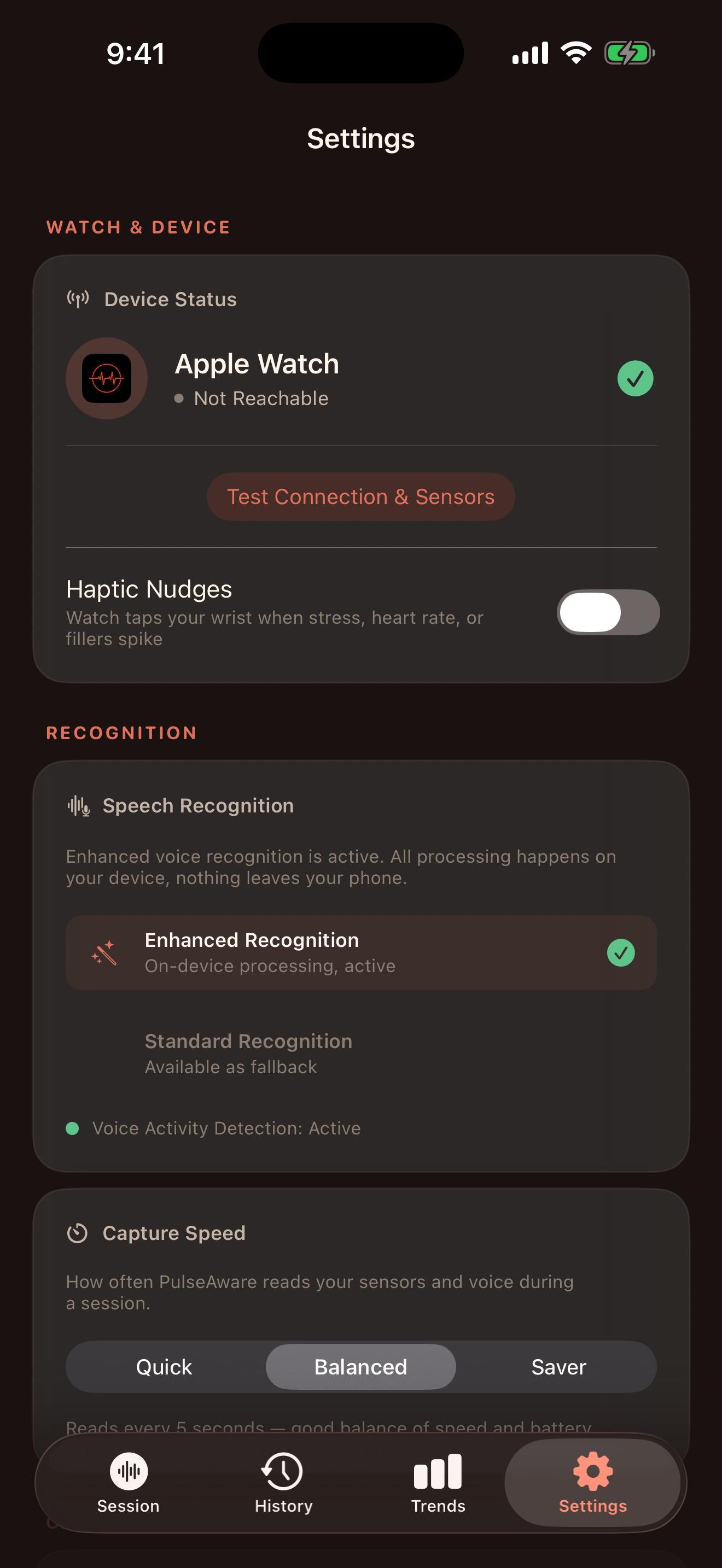
The top of Settings is organised by what you actually decide about:

Watch & Device. A Device Status card shows whether your Apple Watch is reachable, with a Test Connection & Sensors button in terracotta underneath. A Haptic Nudges toggle lets you opt in to wrist taps for stress, heart rate, and filler spikes. Off by default.

Recognition. The Speech Recognition card confirms that enhanced voice recognition is active and "All processing happens on your device, nothing leaves your phone." You can choose between Enhanced Recognition (on-device WhisperKit, active) and Standard Recognition (available as fallback). Voice Activity Detection is marked Active beneath.

The last visible block starts a Capture Speed toggle: Quick, Balanced, Saver. The default is Balanced - roughly a reading every five seconds, chosen for speed-vs-battery balance.

PulseAware Settings showing Device Status for Apple Watch with Test Connection and Sensors button, Haptic Nudges toggle off, Speech Recognition with Enhanced and Standard options and Voice Activity Detection Active, and a Capture Speed toggle starting at Balanced.
7.2 · Science, Support, Reset

Where the app is transparent about itself.

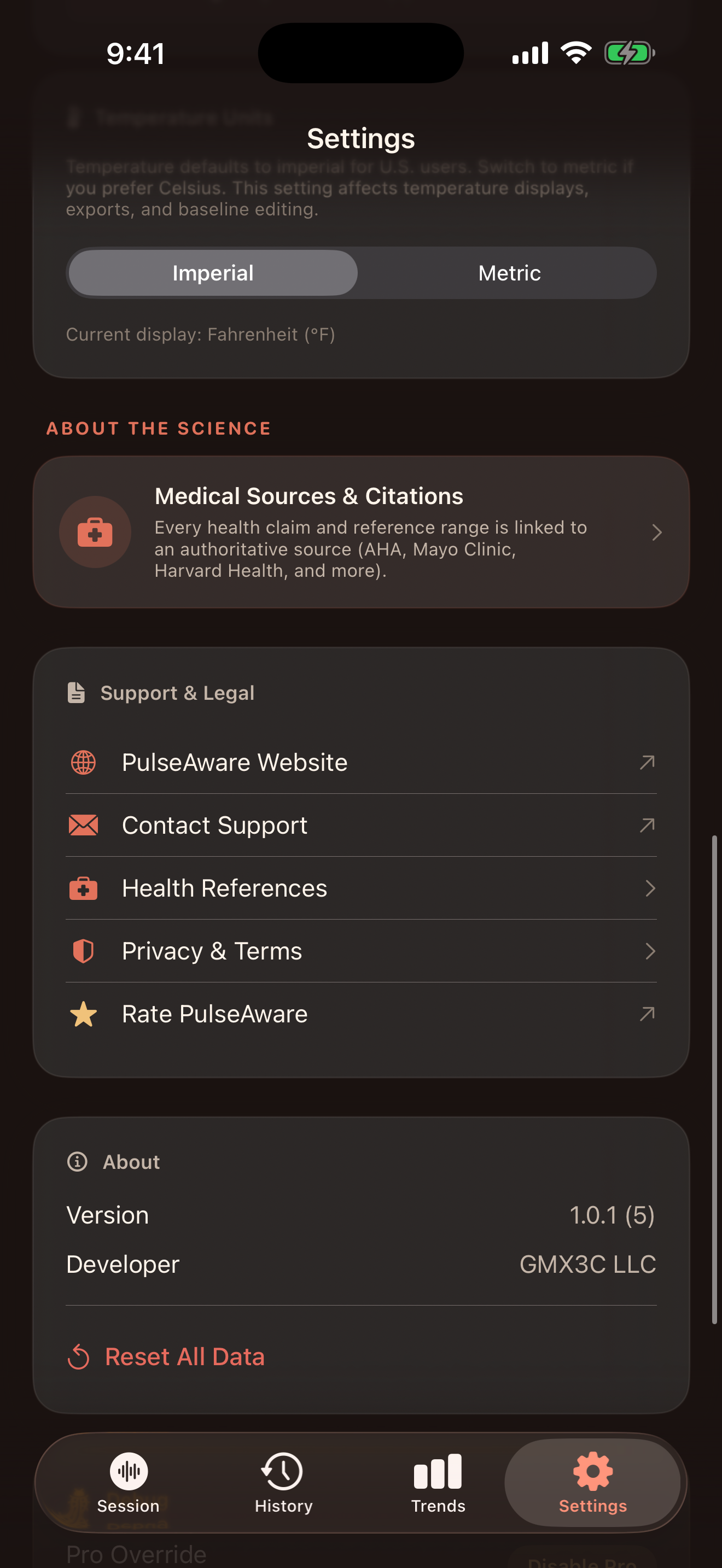
Scroll Settings and you arrive in the About the Science, Support & Legal, and About blocks.

About the Science shows a single large card - Medical Sources & Citations - with the subtitle "Every health claim and reference range is linked to an authoritative source (AHA, Mayo Clinic, Harvard Health, and more)." The arrow drops you into the same references the recap footer pointed to.

Support & Legal:

  • PulseAware Website
  • Contact Support
  • Health References
  • Privacy & Terms
  • Rate PulseAware

About: Version, Developer (GMX3C LLC), and - critically - a Reset All Data button in red. One tap wipes every session, every baseline, every reflection. The power to undo is built in, not buried.

There is also a temperature unit toggle a bit further up: Imperial / Metric. Current display Fahrenheit. A small thing, but the kind of thing that tells you the app's authors thought about users outside their own zip code.

PulseAware Settings scrolled to show Temperature Imperial Metric toggle, About the Science Medical Sources and Citations, Support and Legal links, About block with Version 1.0.1 and Developer GMX3C LLC, and a Reset All Data button in red.
7.3 · On-device and private by default

What leaves the phone, and what does not.

  • Audio: never leaves the device. No cloud transcription, no model inference over the wire.
  • Transcripts: never leave the device. WhisperKit runs locally when Enhanced Recognition is on; iOS Speech Recognition runs locally when Standard is on.
  • Biometrics: come from Apple HealthKit on your Watch and iPhone. PulseAware reads, but does not send them anywhere.
  • Reflections: stored locally in your app data, tied to the session.
  • Account: there isn't one. The app does not make you sign up, and does not ask for an email address.

The promise is simple. If you delete the app, you delete the data. If you tap Reset All Data, you delete the data. There is no server-side shadow copy.

Part 8 · Free vs Pro

What is free forever, and what $4.99 buys you.

A side-by-side on data points and features, so you can decide with the full picture.

8.1 · What Free gives you

Ten voice metrics, the state page, basic recap, and history. Free

  • All six Your Voice tiles (WPM, Volume, Pitch, Modulation, Fillers, Voice Quality).
  • Three Your State tiles from voice alone (Stress, Sentiment, Talk Ratio).
  • Basic session recap with the How You Felt panel, summary, and WPM timeline.
  • Unlimited session history.
  • Standard on-device speech recognition.

Free is a real product, not a teaser. If all you want is a private voice mirror, you can use PulseAware forever without paying.

8.2 · What Pro adds

35 more data points, the Watch companion, and the full recap. Pro

  • Voice Pro page - jitter, shimmer, HNR, spectral tilt, centroid, MFCC3, rate variability, avg and max pause duration, long-pause ratio.
  • Body Pro page - heart rate, HRV, breath rate, resting HR, SpO2, fidget, micro-movement amplitude, body temperature.
  • All stress, sentiment, and body timelines in the recap (not just WPM).
  • Session Coaching bullets, Insights across sessions, Key Moments flags, Correlation Insights.
  • Emotional State engine (the "How You Felt" inference at the top of the recap).
  • Apple Watch companion app, with optional Haptic Nudges.
  • Enhanced Recognition (WhisperKit on-device).
  • Shareable session summary card.

Pro is a single one-time purchase. $4.99. No subscription. No "introductory" pricing that doubles in six months. Yours forever.

Part 9 · Ready to try it?

Where to go next.

Links back to the product page, the waitlist, and the Privacy policy.

PulseAware is live on the App Store.

You just read the entire walkthrough, screen by screen, number by number. If the "mirror, not coach" framing matches what you are looking for, the app is ready to install.

Download on the App Store

Or jump to Privacy · Support.